

 Français
 Deutsch
 Italiano
 Português
 Español
Create your Support Team
With the Professional license you can create your own Support Team, configure operators and enable them to handle your customers’ support requests in the Supremo Console.
You have to distribute to your customers a personalised version of Supremo Custom Pro in which the support request management is active.
Who creates a Team automatically becomes its owner-administrator. Only the Team-owner needs to have an active and valid license in order that all the Team can manage the support queue.
In the Supremo Console, click on Support Services: by confirming the activation, you create your Support Team and you become its owner-administrator.
In User Management, it is possible to set up your team.
Only the owner has full control over the Team in terms of:
- creating, adding and editing team members
- configuring visibility and access permissions for data and features
- creating, modifying, and deleting support groups within the Team
- configuring the support queue
How to add a new collaborator to your Support Team
To add a new operator to your team, click on Support Services – User Management to access the Team management and then click on Add User.
You can either include in your Team a user already registered at the Console or create the account yourself. Only in the case of a new registration will the user receive an e-mail confirming the creation of the account.
Each user can only be part of one Support Team.
You must then share the Support Management with your co-worker by ticking the flag in the appropriate column and he/she will be assigned the role of Assistance Team Operator.
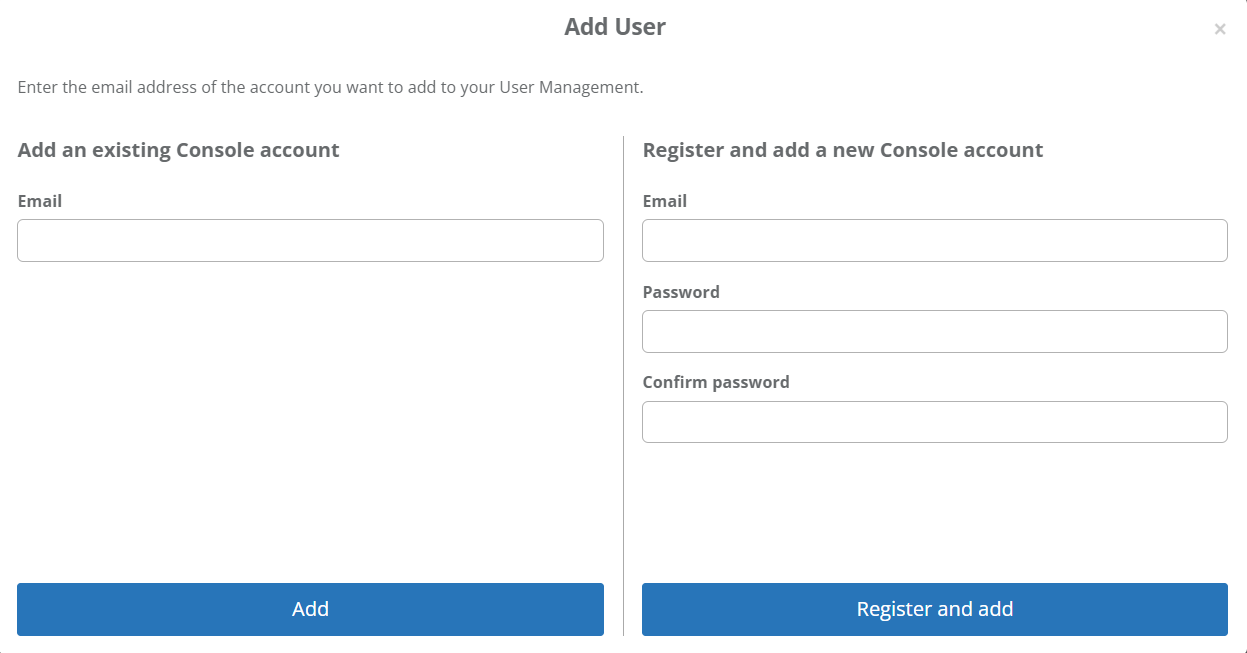
For more information about Users and Operators Management click here.
Under Support Services – Configurations, by clicking on the Email notification box, you can enable email notifications when a ticket is assigned to an agent or their group.
How to add a new group to your Support Team
To create groups within your Team, on Support Services – Configurations – Groups click on the +, enter the group name and click Create.
The group is created, and you can assign one or more operators to it by clicking on the gear icon and on Manage Operators.
Then select your collaborator’s e-mail and click the + symbol.
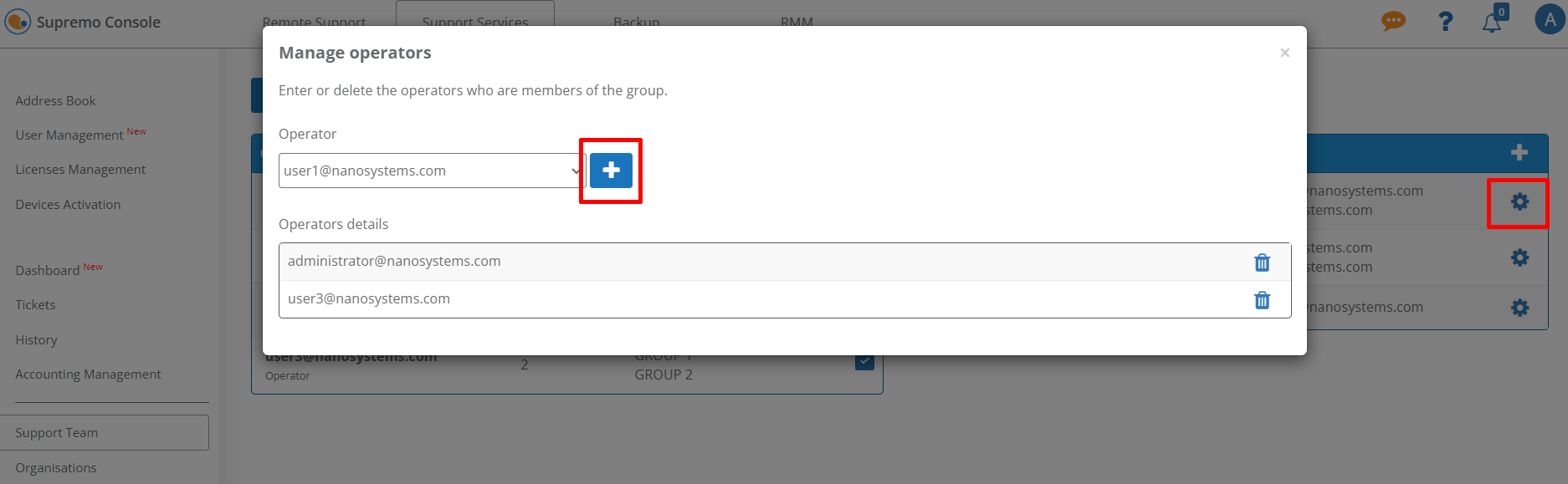
In order to appear in the drop-down list, the operator must have been entered and enabled for the Support Management in Support Services – User Management.
You can rename, modify or delete the Group at any time by clicking on the gear icon.
If you delete a group, all the open support requests of that group will revert to unassigned status and the closed ones will be deleted from the history.
If you have created profiles in “Supremo Custom Pro” with the Group deleted, click on Support Services – Supremo Custom Pro, carry out the changes and save them.
Those who use your custom file just need to close and restart the file to view the changes.