

 Français
 Deutsch
 Italiano
 Português
 Español
How to create secure TCP tunnels through Supremo
TCP Tunneling allows you route TCP connections through an active Supremo session.
This means you can securely access services running on a remote device without opening firewall ports or setting up a VPN.
How to enable TCP Tunneling
To use TCP Tunneling, the Control device needs a Supremo Professional license.
On the Host device (the remote device), TCP Tunneling must be enabled:
- open Supremo on the Host device,
- go to Tools,
- open the Permissions section,
- select the TCP Tunneling option,
- click Save to apply the changes.
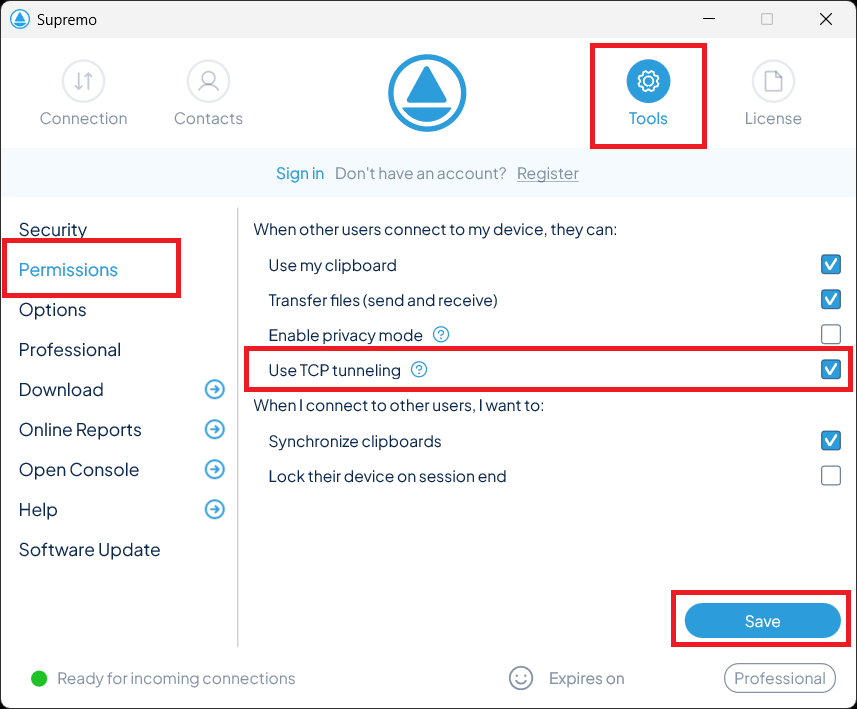
Once enabled, the Control device can use TCP Tunneling when connecting to that Host.
How to access the TCP Tunneling configuration
After connecting to the remote device with Supremo, open the Control menu in the top toolbar and select Setup TCP Tunneling.
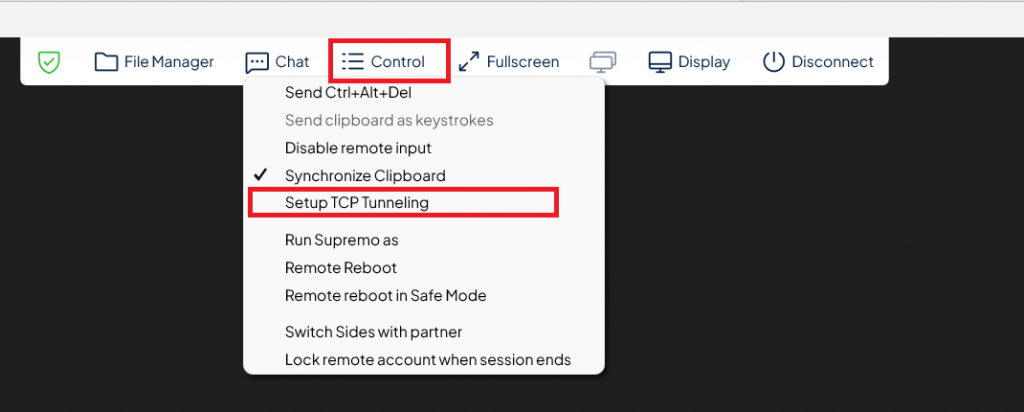
The TCP Tunneling configuration window will open.
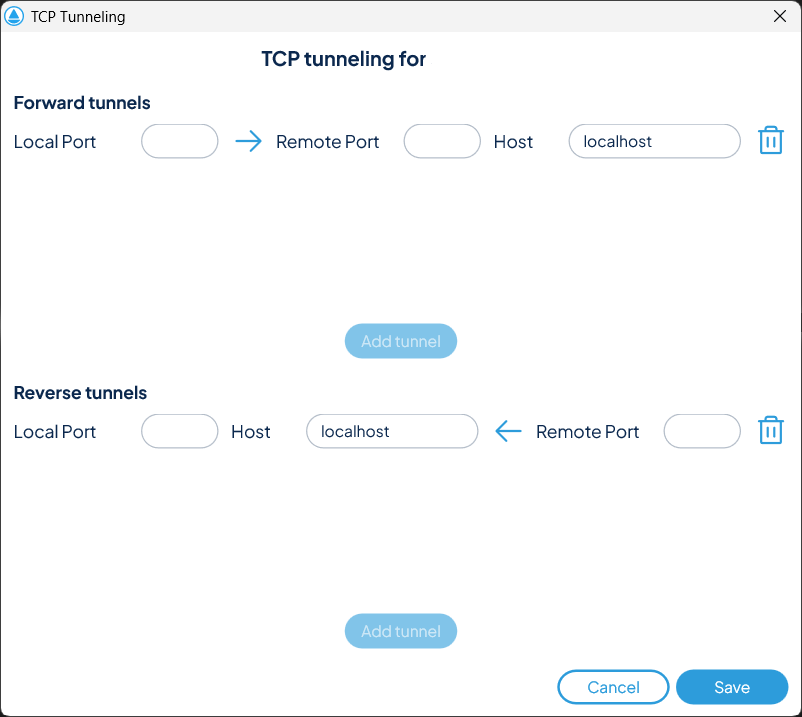
The configuration window has two sections: Forward tunnels and Reverse tunnels.
Each row has three fields, Local Port, Remote Port, and Host. A direction arrow shows which way the traffic flows.
Fill in the fields, click Add tunnel, then click Save.
Tunnels are saved locally and restored automatically in future sessions.
Each port can only be used once. If it is already in use, the tunnel will not be created.
It is recommended to use a local port different from the service port to avoid conflicts.
Forward tunnel
A Forward tunnel lets you reach a service running on the remote device from your local machine.
Set the Local Port (the one you’ll use on your machine), the Remote Port (where the service runs on the remote device), and leave Host as localhost. Click Add tunnel, then click Save.
Example of Forward tunnel
Suppose you want to access a web service running on the remote machine on port 8080.
Configure the tunnel as follows:
- Local Port: 9010
- Remote Port: 8080
- Host: localhost
To access the service:
- Open a browser on your local machine
- Go to:
The remote service will be accessible through the tunnel.
Reverse tunnel
A Reverse tunnel lets the remote device access a service running on your local machine.
Configure it the same way as a Forward tunnel, but in the Reverse tunnels section of the configuration window.
Operating System support
Windows has full support: both Forward and Reverse tunnels work in all configurations.
macOS has partial support: the Forward tunnel is only available when the Mac is the Host, and the Reverse tunnel only when it’s the Control.
Android and iOS are not supported.
Troubleshooting
If the tunnel isn’t working, check these common causes:
- A firewall or security software is blocking the connection
- TCP Tunneling is not enabled on the Host
- The port is already in use by another application
- The service isn’t running on the specified port