
 Français
 Deutsch
 Italiano
 Português
 Español
Manage your Console users
User Management allows you to organize your team members and define access permissions to data and features for each of them.
Roles are defined based on the Console sections shared with each user:
-
Owner Administrator: the user who creates the Team and activates the Supremo Professional license in the Console. This is the only user who:
- has all permissions;
- can enable other administrators;
- can associate devices with the Supremo Console by logging in to the Professional section of the Supremo software (in order to use the RMM, Advanced Reporting, and License Sharing features).
- Administrator: users become administrators when the Administration section is shared with them (including User Management, License Management, and Devices Activation).
- User: one or more Console sections can be shared with users (Remote Support, RMM, IT Security, Backup).
- Operator: users become operators when the Support Services section is shared with them, allowing them to view and manage tickets submitted through Supremo.
It is important to keep in mind that:
- by sharing the Remote Support section, the Reports visible to the administrator are also shared. Therefore, Contact Groups (or the entire Address Book) must also be shared with the various Team members in order to obtain a complete overview of all users’ connections;
- the Address Book is not automatically shared with any Console section and follows sharing rules on a per-Group basis (through the Address Book link) or can be shared quickly and in bulk through User Management.
Console Users and Administrators are unlimited while the maximum number of Operators depends on corresponds to the number of simultaneous connections included in your Supremo Professional plan. This limit applies solely and exclusively to the management of Support Queue tickets in the Console; it does not affect the use of simultaneous connections, for which there is no limit on the number of users.
To manage Administrators, Users and Operators, you must first activate your work team by clicking on Activate and entering the name of the work team.
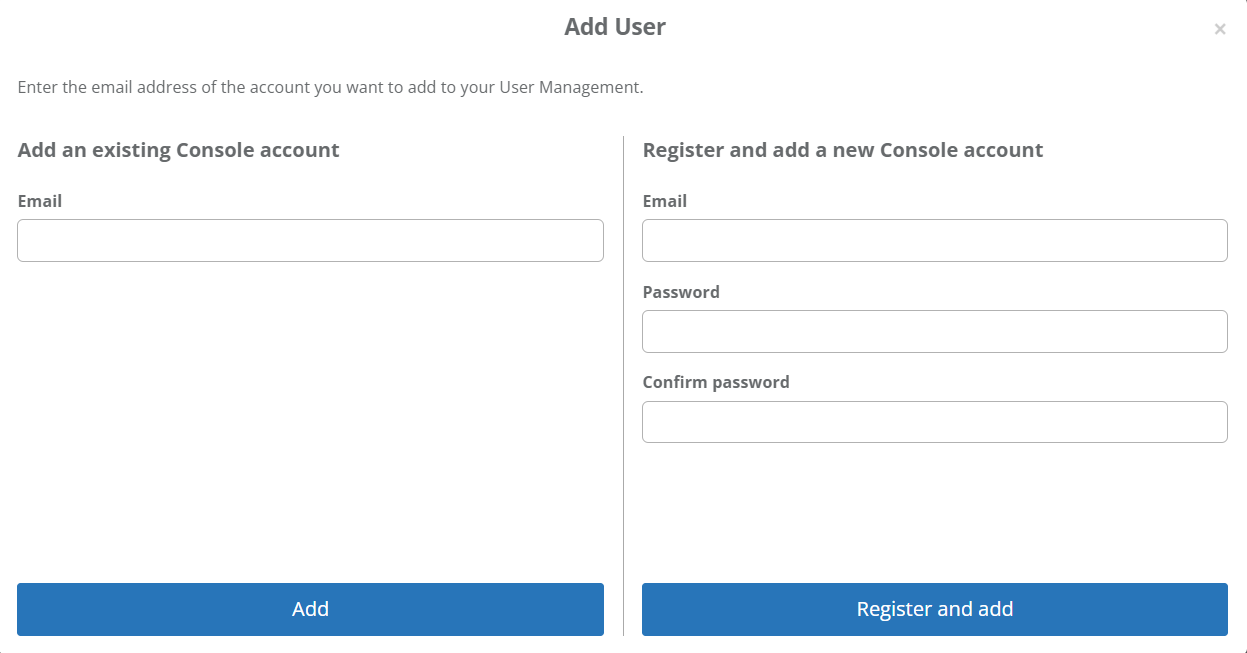
In the Users section, you can add operators and users directly from this section of the console by clicking on “add user”.
If the account already exists, you can enter it in the “Add an existing Console account” section or you can register a new account by filling in the details in “Register and add a new Console account”. Only in the case of a new registration does the user receive an e-mail to confirm the creation of the new account.
The account appears in the list of Users, and you can share one or more sections of the Console: Administration (User Management, Licences Management and Devices Activation), Remote Support, Support Services, RMM, IT Security, Backup.
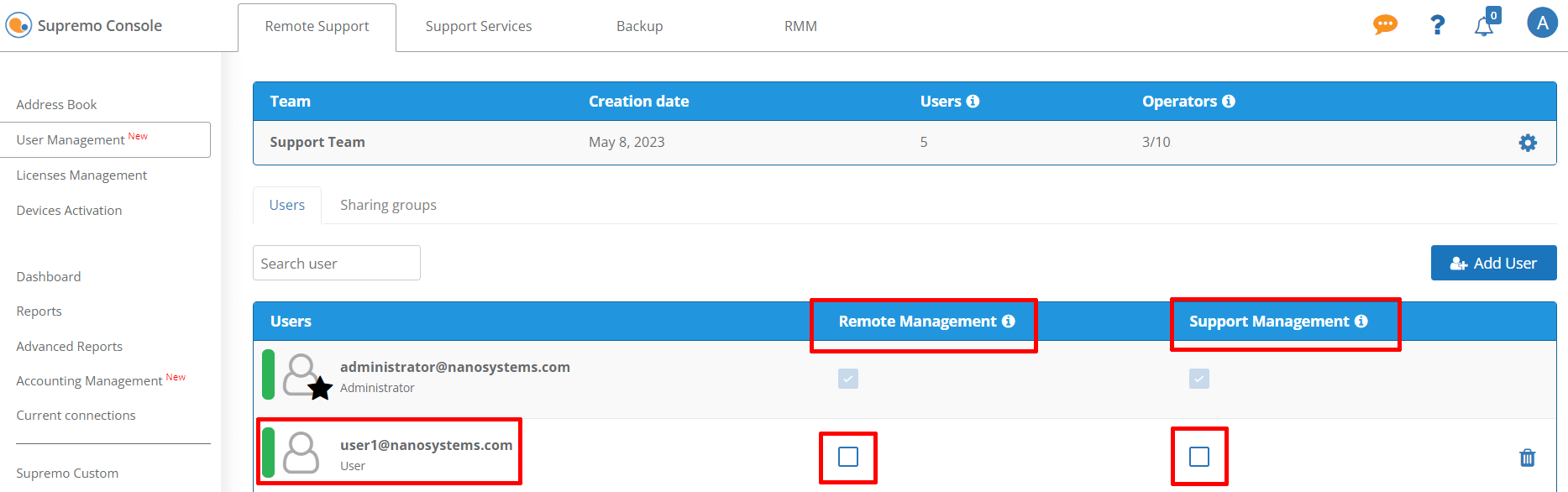
By enabling Support Services, the User becomes an Operator and you can now manage it in Support Services – Support Team (for more information click here).
A dedicated indicator shows the number of Users and Operators in your team.
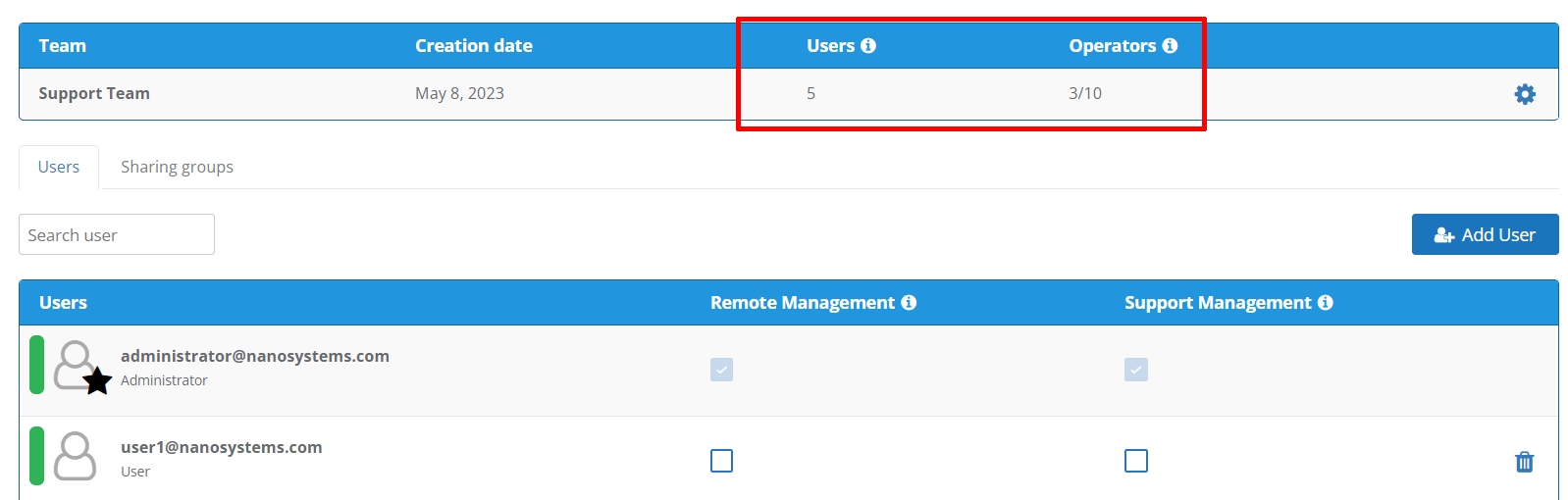
You can change the authorisation of each user at any time or delete the account from your team by clicking on the recycle bin.
It is also possible to quickly share your Address Book contacts with your users in the following three ways:
- Quick sharing of one or more groups with individual users: directly from the user list by clicking on the Shared Groups icon

and selecting the groups to share with the user in the window that opens.
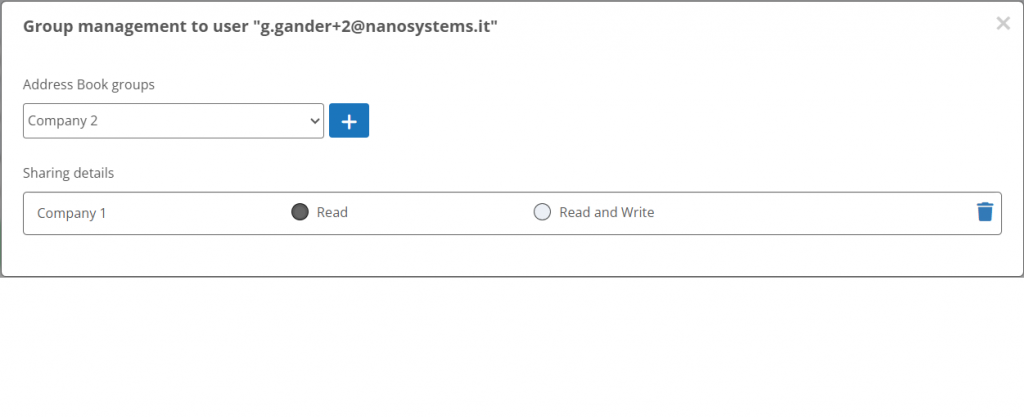
After sharing, the initial icon is replaced by the numbers of groups shared with each user/operator/administrator.
- bulk sharing of the entire address book: by clicking Share All Groups, you can share your entire Address Book with one or more users in a single operation, choosing the action to perform (share or remove a previous share), the type of permissions, and the recipient accounts.
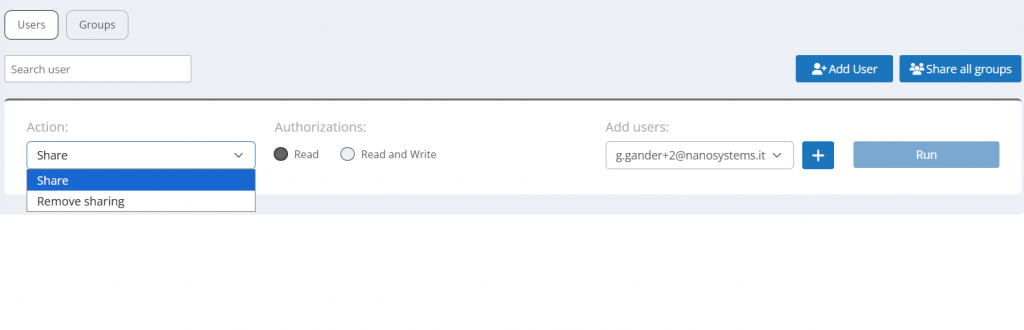
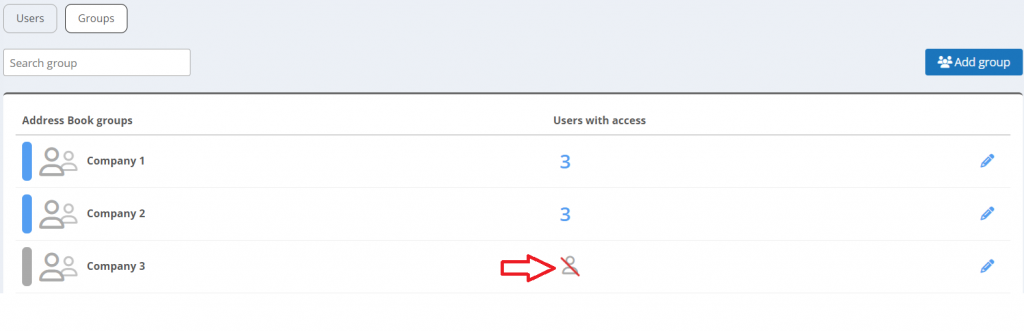
- quickly share individual groups with one or more users: by clicking on the Groups tab, you can share one or more groups from the Address Book, this time starting from the list of groups already added and then selecting the users.