

 Français
 Deutsch
 Italiano
 Português
 Español
How to hide the remote screen with Privacy Mode
Privacy Mode hides the screen of the remote Windows or macOS device during a session, so anyone physically in front of the machine cannot see what you are doing.
While active, the remote screen is replaced with a message indicating that the session is running in Privacy Mode.
The feature can currently be enabled from Windows and macOS devices, and support for enabling it from mobile devices will be available soon.
To enable or disable the feature, a Supremo Professional license is required on the local (control) device.
How to use Privacy Mode
First, you need to enable Privacy Mode on the remote computer.
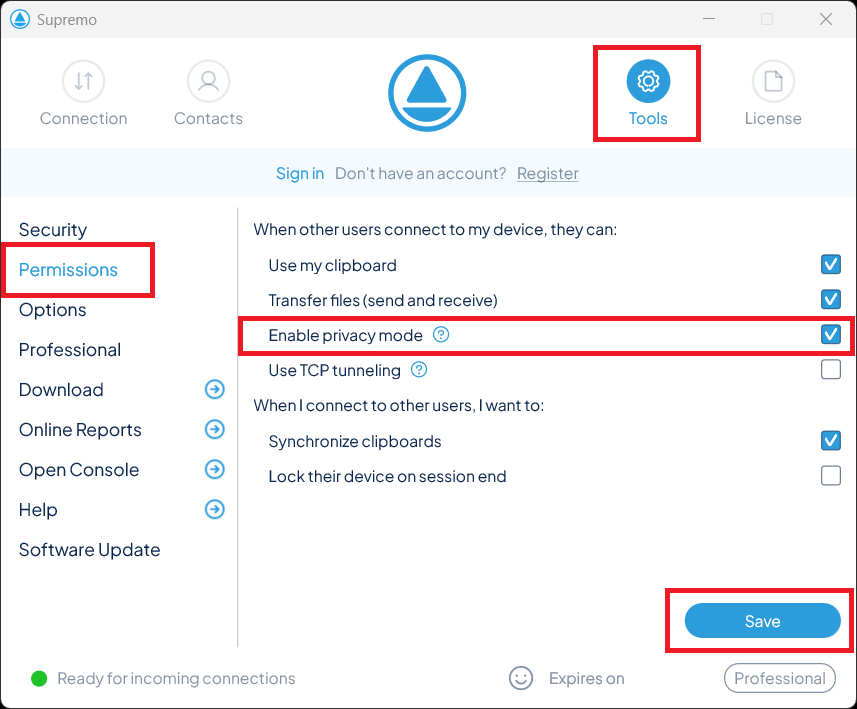
To do this, open Supremo and go to Tools-Permissions-Enable privacy mode and click Save.
To enable it during a remote session:
- Connect to the remote computer using Supremo
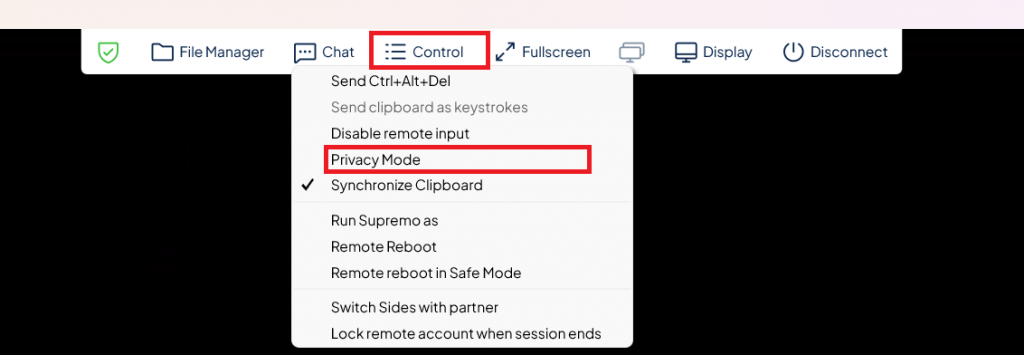
- In the session top bar, click on “Control”
- Select “Privacy Mode”
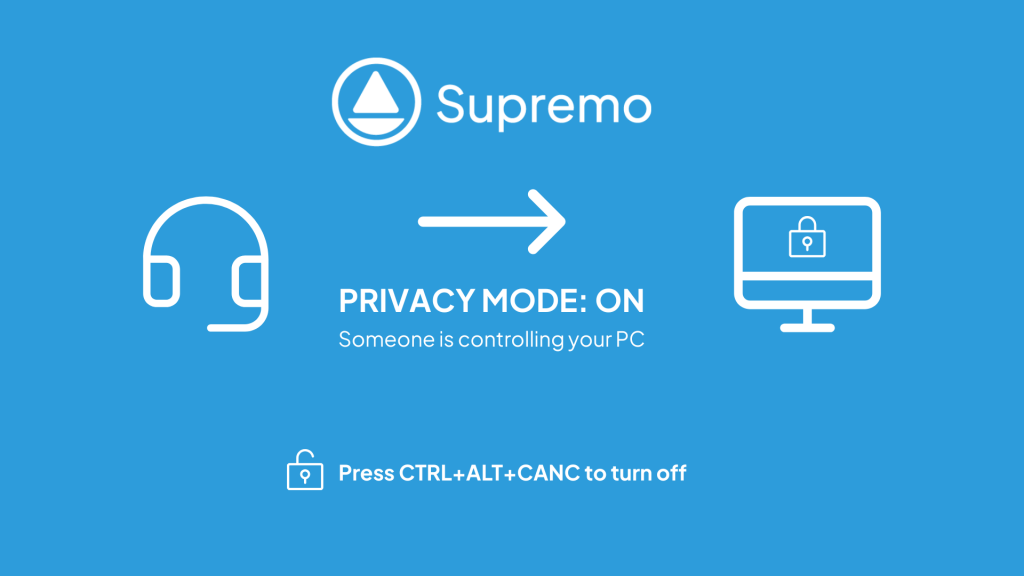
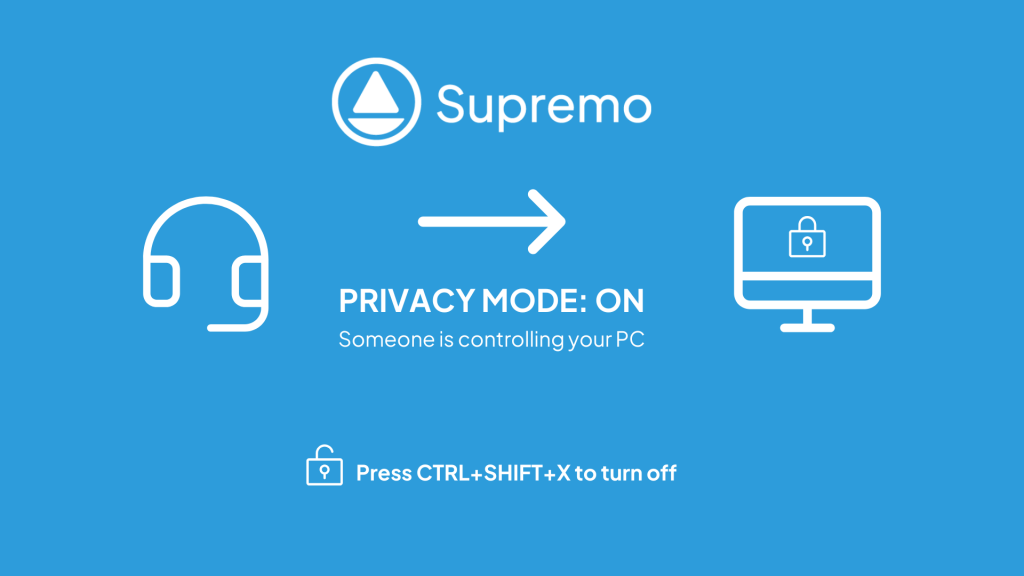
After activation, the remote computer screen will be automatically obscured with a screen, indicating that Supremo Privacy Mode is enabled .
When Privacy Mode is active:
- the remote computer screen turns blue
- an information screen with instructions to exit the mode is displayed
- all connected monitors are obscured
The behavior slightly differs depending on the operating system.
On Windows, the local mouse and keyboard are blocked while Privacy Mode is active, whereas on macOS they remain usable.
In both cases, it is always possible to disable the mode using the key combination shown on screen.
How to disable Privacy Mode
The mode can be disabled directly by the remote operator using the same command in the session top bar, or by the local user using the key combination shown on screen.
On Windows by pressing CTRL+ALT+CANC
On Mac by pressing CTRL+SHIFT+X
In the following cases, remote screen obscuring is automatically disabled:
- when the remote user logs out
- when all remote connections are closed
- when the local user manually disables the mode
Requirements to use Privacy Mode
The remote computer must meet the following requirements:
Windows: version 10 build 19041 (2004) or later. This feature is not available on 32-bit operating systems, as it requires a 64-bit system.
macOS: version 10.15 (Catalina) or later.
Additionally:
On Windows Operating system, Privacy Mode only works if Supremo is running under the SYSTEM account on the remote computer.
If unattended access is not enabled, you must manually enable the option Run Supremo under SYSTEM account from the Tools – Options- Advanced menu in Supremo.
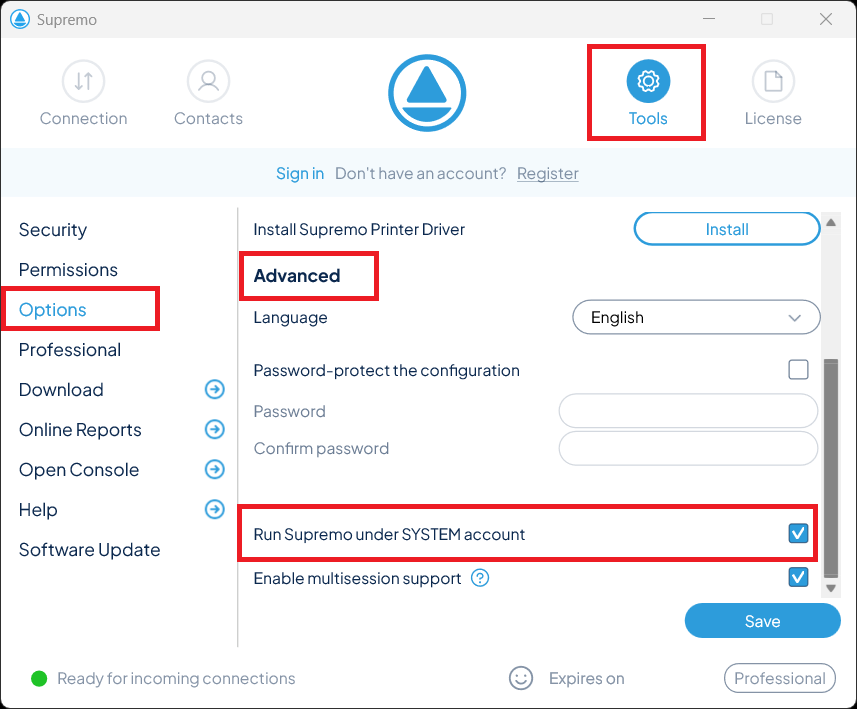
If unattended access is already enabled (Supremo Service), you do not need to do anything else, because Supremo already runs under SYSTEM automatically.
How simultaneous connections work on a remote host with Privacy Mode enabled
If multiple operators are connected to the same remote computer, only users with a Professional license can enable or disable Privacy Mode.
If the local user disables the mode using the key combination, all connected operators receive a notification indicating that the mode has been turned off.